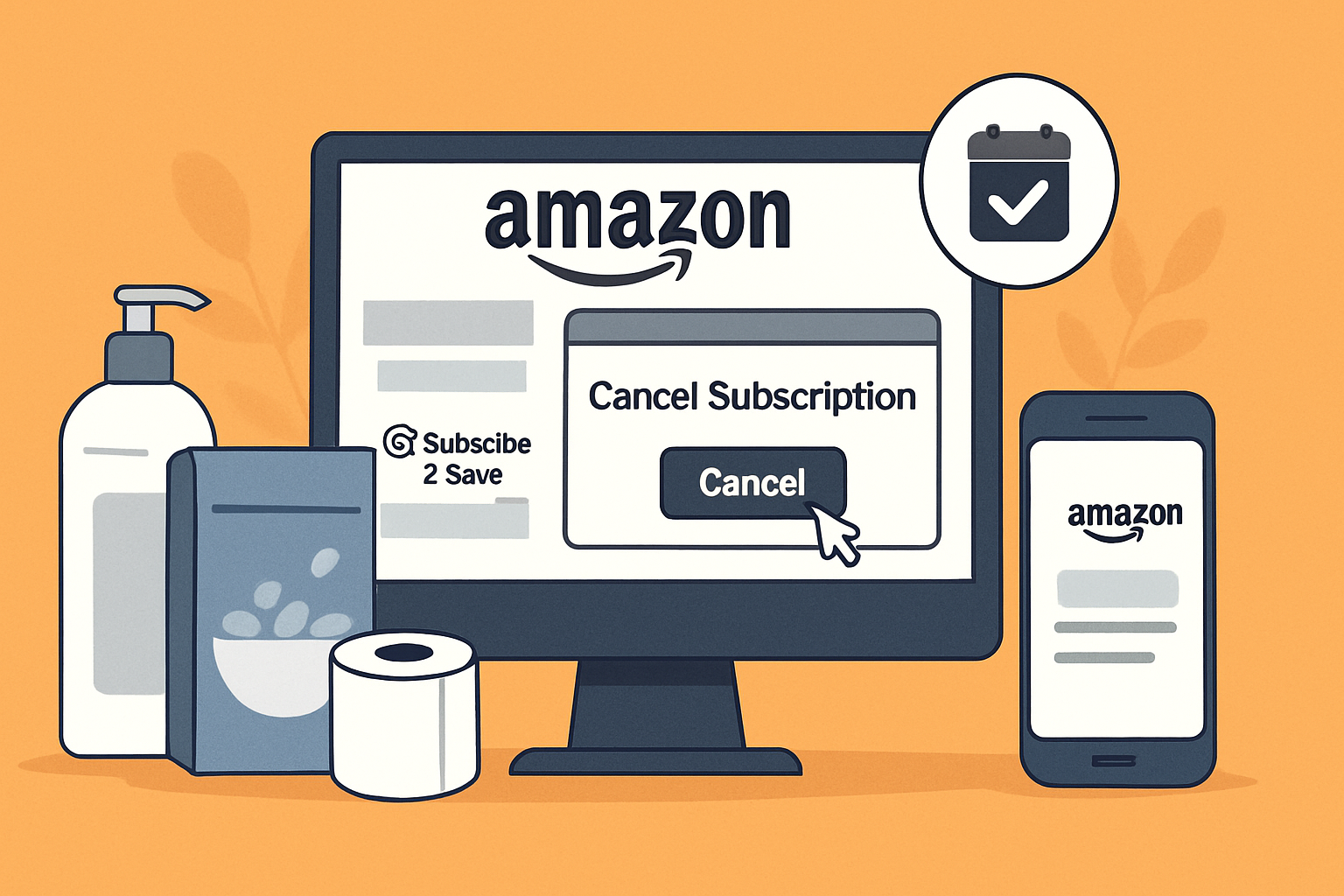
Amazon’s “Subscribe & Save” program helps shoppers save money and time on essentials. It lets you schedule recurring deliveries and offers discounts of up to 15% on household, grocery, and personal care items.
But what happens when you no longer need those monthly deliveries? Canceling your Amazon Subscribe & Save order isn’t always as simple as it should be. Many users struggle to find the cancellation option. It’s often buried in account menus. Users may have to spend 15 to 20 minutes just trying to locate it.
If that sounds familiar, you’re not alone. This guide explains how to cancel your Amazon Subscribe & Save items. You can do this easily on a desktop or through the Amazon app.
💬 A Quick Relatable Moment
Last month, I sat staring at my Amazon account, clicking through menu after menu — but couldn’t find “Cancel Subscription” anywhere. I felt frustrated and even wondered if I was missing something obvious. Turns out, I wasn’t. Many shoppers experience the same confusion every month while trying to cancel an auto-delivery.
💡 Want quick answers? Jump to FAQs ↓
Why Canceling Amazon Subscriptions Can Be Confusing
At first, Amazon’s interface looks simple. However, the Subscribe & Save section is hidden. It doesn’t show up in your regular order list. Instead, check under Your Account → Your Subscribe & Save Items.
Because of this placement, many users end up searching Google or Amazon’s help pages for the correct instructions. Fortunately, once you know where to click, canceling takes less than a minute.
🛈 Did You Know?
Amazon launched Subscribe & Save back in 2007 to make repeat purchases effortless.
But even after more than a decade, thousands of users still rely on Google to find where the “Cancel” option is hidden on Amazon’s site.
Step-by-Step: How to Cancel Amazon Subscribe & Save
Canceling your subscription can be done from both desktop and mobile devices. The process is slightly different depending on where you’re logged in.
How to Cancel on Desktop or Laptop
Follow these steps if you’re using a computer browser:
- Log In to Your Amazon Account
Visit amazon.com (or your country’s version) and sign in with your credentials. - Go to “Your Subscribe & Save Items”
Hover over “Accounts & Lists” in the top-right corner.
Click “Your Subscribe & Save Items.”
(Shortcut link: https://www.amazon.com/auto-deliveries) - Select the “Subscriptions” Tab
Make sure you’re viewing the “Subscriptions” tab, which lists your active items. - Choose the Item You Want to Cancel
Locate the item you no longer want. Click its image or name to open details. - Click “Cancel Subscription”
A pop-up will appear showing your delivery schedule. Click “Cancel Subscription.” - Select a Reason for Cancellation
Choose any reason — for example, “I don’t need this item regularly” or “Found a better deal.” - Confirm Your Cancellation
Click “Cancel my subscription.” You’ll see a confirmation message, and the product will be removed from your active subscriptions.
How to Cancel on the Amazon Mobile App (Android or iPhone)
You can also cancel your subscription directly from the Amazon app. Here’s how:
- Open the Amazon App
Launch the Amazon app on your Android or iPhone and sign in if necessary. - Access Account Settings
Tap the menu icon (☰) — it’s usually at the top or bottom of your screen.
Scroll down and select “Your Account.” - Tap “Your Subscribe & Save Items”
Under the account section, find and tap “Your Subscribe & Save Items.” - Click on the Product Image
Tap on the image of the product which you want to cancel. - Tap “Cancel Subscription”
On the pop up screen, click on “Cancel Subscription” - Select a Reason for Cancellation
Choose a reason when prompted. - Confirm the Cancellation
Tap “Cancel My Subscription.” You’ll receive a confirmation message and an email for your records.
💡 Smart Shopper Tip
Before canceling, compare the current price of your item as a one-time purchase. Sometimes, Amazon offers temporary discounts that make a single order cheaper than a subscription — especially for products like coffee pods, supplements, or cleaning supplies.
You can use tools like CamelCamelCamel or Keepa to track Amazon price history and ensure you’re truly saving.
🔁 Quick Tip: Pause Instead of Canceling
If you just want to take a short break, both the desktop and mobile versions offer a “Skip Next Delivery” option.
It’s ideal if you plan to resume your subscription later without losing your discount.
Before You Cancel: Things to Check
- Pending Deliveries: If an order is already being processed, it may still ship. Cancel before your next billing date.
- Skip Instead of Canceling: Need a short break? Use the “Skip Next Delivery” option instead of canceling completely.
- Discount Impact: Canceling multiple items might reduce your overall Subscribe & Save discount percentage.
What Happens After You Cancel
After confirming your cancellation, Amazon removes the product from your active subscriptions. You can still view previous orders and re-subscribe anytime from the product page.
Amazon sends a confirmation email. Keep it in your inbox. You might need it for proof of cancellation or to resolve billing disputes.
📘 Also Read
If you’re managing multiple subscriptions, you might find this useful — here’s a simple guide on how to manage or cancel your Daily Telegraph subscription .
Amazon Subscribe & Save vs One-Time Purchase Section
| Feature | Subscribe & Save | One-Time Purchase |
|---|---|---|
| Discount | 5–15% on eligible items | Regular price |
| Delivery | Automatic, every 1–6 months | Manual purchase |
| Flexibility | Can skip or cancel anytime | No auto-renew feature |
| Risk | May forget to cancel | None |
Why Amazon Makes It Hard to Find
Many shoppers believe Amazon intentionally keeps the cancellation option less visible. Extra steps and hidden menus can make quick cancellations harder. This helps the company keep its subscriber numbers up.
This may make sense for the business, but it frustrates customers. They just want to stop recurring deliveries. Knowing the right path saves time and prevents unnecessary confusion.
🔗 Read More
Curious how other subscription services handle cancellations? Check out our detailed analysis — Xpendy Subscription Cancellation Review .
Frequently Asked Questions (FAQs)
No. Once an order has shipped, it can’t be canceled. You can return it after delivery following Amazon’s standard return policy. To avoid this, cancel your subscription before the next billing cycle.
Yes. You can skip your next delivery without canceling the entire subscription. This is helpful if you just need a short break. Visit “Your Subscribe & Save Items” and choose Skip Next Delivery instead.
It might. If you have five or more active items set for the same delivery date, Amazon gives you up to a 15% discount. Canceling one or more may reduce that discount for remaining products.
Yes. You can re-subscribe anytime by visiting the product’s page and clicking “Set up Subscribe & Save.” Your delivery preferences will reset, but setup only takes a few seconds.
Yes. You can cancel using the Amazon app. Tap the menu icon (☰) → “Your Account” → “Your Subscribe & Save Items.” Then open the item, tap “Cancel Subscription,” and confirm.
If your next order is already being processed, it will still ship. You can only cancel future deliveries — not those already scheduled for dispatch. Always check your next delivery date in advance.
There’s no need for a refund because Amazon only bills you when an item ships. Canceling simply stops future billing — no fees or penalties apply.
💡 Pro Tip:
Check your Subscribe & Save items every month. Prices and offers can change.
Regularly reviewing your list helps you avoid surprise renewals or unexpected price hikes.
🗨️ Reader Poll
Have you ever tried canceling a Subscribe & Save order?
Was it easy or confusing?
👉 Share your experience in the comments — your insight could help another Amazon shopper save time and effort.
🏋️♀️ Related Read
Interested in fitness memberships and how cancellations work? Check out our detailed guide on Planet Fitness Membership 2025 — Perks, Costs & Cancellation .
Final Thoughts
Amazon’s Subscribe & Save program is great for regular essentials. But what if your needs change? Canceling, however, can feel unnecessarily complex for something so simple.
By following the steps above, you can cancel any Amazon Subscribe & Save item quickly — no calls, no hidden menus, and no wasted time.
Make it a habit to review your active subscriptions once a month. You’ll stay in control. You can stop unwanted renewals. This way, your spending goes only to what you really need.